A guide to Photoshop color settings, working spaces, profile policies, CMYK setup, and conversion decisions in production workflows.
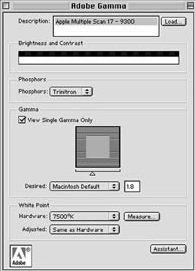
Adobe Gamma and Display Setup
Adobe Gamma was widely used as an entry-level monitor adjustment utility on both Macintosh and Windows, but it should be considered a legacy tool. It allows visual adjustment of contrast, brightness, gamma, white point, and phosphor definitions, yet it remains far less reliable than hardware-based calibration with a measuring instrument.
For production work, visual setup alone is not enough. A monitor used for correction, approval, or proofing should be calibrated with a colorimeter or spectrophotometer and then profiled for the actual viewing environment. Adobe Gamma can therefore be seen as a historical bridge, not a professional endpoint.
RGB Working Spaces
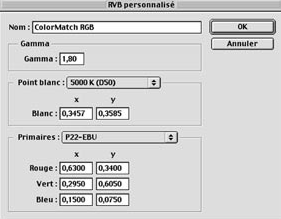
Photoshop’s color settings revolve around the idea of a working space. In RGB, that means choosing the reference color space used to interpret, edit, and exchange files. Common options include sRGB, Adobe RGB (1998), Apple RGB, and ColorMatch RGB, each with its own gamut and intended use case.
sRGB became the baseline for consumer imaging and the web. Apple RGB reflects an older Macintosh-oriented environment. Adobe RGB offers a wider gamut that is often more suitable for prepress and photographic work. ColorMatch RGB was historically valued in professional publishing because it provided a practical and predictable editing space for print-oriented workflows.
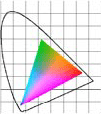
Other RGB spaces, such as NTSC, PAL/SECAM, SMPTE variants, and Wide Gamut RGB, appear in the historical Photoshop interface because they reflect different television, imaging, or experimental contexts. Not all of them are sensible defaults for daily production. The practical lesson is simple: use a stable RGB workspace that everyone in the workflow understands, and avoid unnecessary conversions between multiple RGB standards.
CMYK Setup
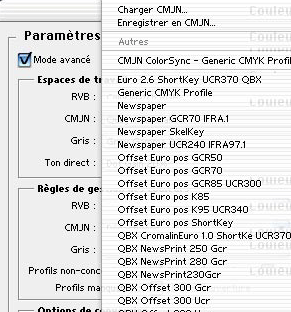
CMYK settings should ideally be based on a profile that represents the real print condition. If a custom ICC profile is available for the target press, paper, and ink condition, that profile should take priority. Generic presets may be acceptable for rough previewing, but they are a poor substitute for a profile built from the actual production environment.
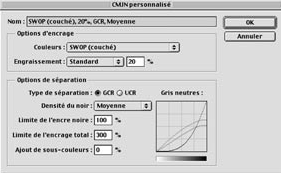
Photoshop also allows custom CMYK definitions through ink options, dot gain values, and separation controls. That flexibility is useful, but it also makes it easy to build settings that look plausible on screen while producing unstable results in print. In production, custom settings should always be grounded in measured output behavior.
Ink and Dot Gain Options
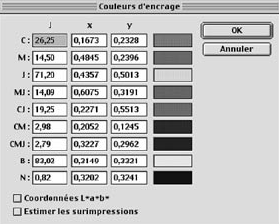
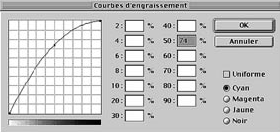
Ink options define the expected behavior of the primary inks and their overprints. Dot gain settings describe how tone values expand during printing. Together, they shape the quality of a CMYK preview and influence how RGB-to-CMYK conversion behaves. If those assumptions do not match the actual press condition, the preview becomes misleading.
This is why press measurements matter. Dot gain is not an abstract preference. It is a production characteristic that should be derived from process control and print measurement, then reflected accurately in the separation settings or ICC profile.
UCR, GCR, and Separation Strategy
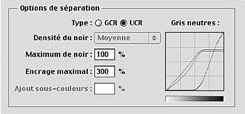
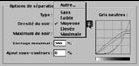
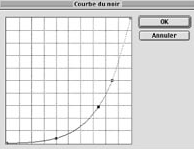
Photoshop exposes black-generation decisions through separation settings. UCR removes undercolors in neutral and dark areas. GCR replaces gray components with black across a wider tonal range. Depending on the press and substrate, one approach may be more suitable than another. Coated papers often support richer black builds and deeper contrast, while absorbent stocks benefit from lower total ink and stronger black replacement.
These controls are powerful because they influence contrast, drying, stability, ink consumption, and gray balance. They are also risky when used without a clear understanding of the target print condition. In modern workflows, ICC profiles often carry much of this behavior, but the underlying print logic remains the same.
Where Conversion Happens
RGB-to-CMYK conversion can happen at several points in the workflow: during scanning, in Photoshop, inside a layout application, at the RIP, or on a production server. The best place for conversion depends on how the workflow is designed. What matters is consistency. If every department converts files differently, color becomes unpredictable even when all the individual tools are technically correct.
A disciplined workflow defines where conversion takes place, which profiles are used, and who is responsible for the final print intent. Without that agreement, color management quickly turns into color drift.
Tables, Profiles, and Legacy Workflows
Earlier Photoshop versions relied heavily on separation tables. Those tables described how a file should move from one space to another, but they were far less flexible than ICC-based workflows. Photoshop 6 marked a clear shift toward profile-driven color management. Profiles became the preferred method because they were more portable, more descriptive, and better aligned with device characterization.
Legacy tables still matter historically, but ICC profiling ultimately became the more robust foundation for professional workflows.
Profile Policies
Photoshop’s color management policies determine what happens when files arrive with or without embedded profiles. Disabling profile handling may look simpler, but it removes essential color context. Keeping embedded profiles is often the safest choice when exchanging files with other studios or departments, because it preserves the source definition instead of silently forcing everything into the current working space.
Converting files into the current workspace can also be valid, but it changes the data and should therefore be done deliberately. The important point is not which button is available. It is understanding whether the file should preserve its original meaning or be normalized into a different controlled environment.
Conversion Options
When Photoshop converts a file from one color space to another, it does so through a color-management engine and an intent. Historically, the software also exposed options such as black point compensation, which helps map the deepest tone of the source profile to the deepest reproducible tone of the destination profile. Used correctly, this preserves tonal structure during conversion. Used carelessly, it can flatten or distort the expected result.
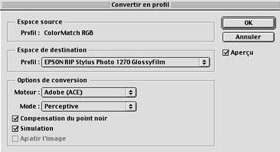
The Assign Profile function is different from Convert to Profile. Assignment changes the interpretation of the file without changing the underlying pixel values. Conversion changes the values so the appearance can be maintained in a new color space. Confusing these two operations is one of the fastest ways to create avoidable color errors.
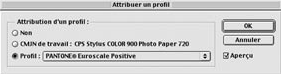
Embedding Profiles and Soft Proofing
Embedded profiles are one of the simplest ways to preserve color meaning during exchange. When a saved file includes its ICC profile, the receiving application knows how to display, convert, and output the data more reliably. That is especially important for formats such as TIFF, PSD, JPEG, EPS, and PDF that often move across multiple systems before final output.
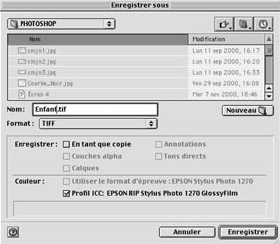
Soft proofing extends this logic to preview. By simulating another output condition on screen, Photoshop allows the operator to estimate how a file may look on a specific press, proofing device, or paper. This is not a replacement for process control, but it is an important decision tool when the monitor is calibrated and the output profile is trustworthy.
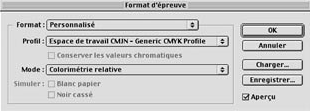
The practical lesson from Photoshop is straightforward: define a working space, respect embedded profiles, convert only with intent, and base CMYK behavior on real print conditions rather than assumptions. When these fundamentals are in place, Photoshop becomes a reliable production tool rather than a source of accidental color shifts.